1. Upload one small file you actually need to turn into video
Start with your own short script, image set, document or slide deck, not a vendor demo. Save a copy of the original and note its duration or page count. A built-in sample proves only that the sample works.
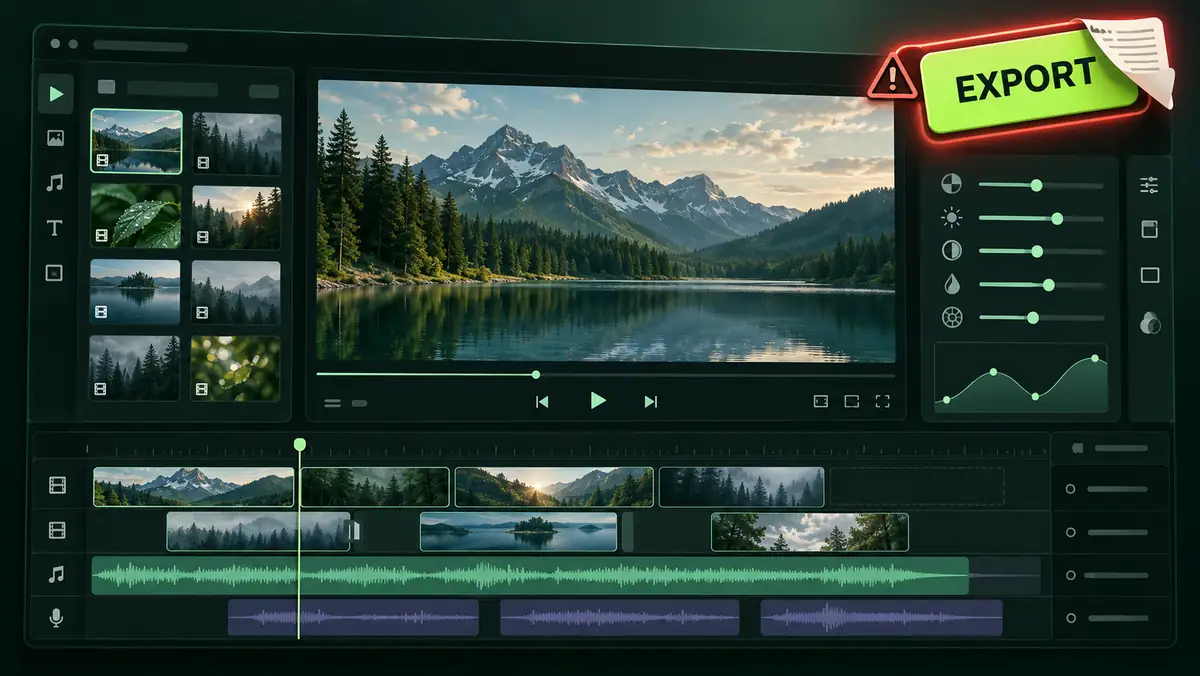
In our Pictory trial, our three-image project reached export, but our own PDF and PowerPoint upload attempts returned to an empty dialog. Its built-in demos opened. That is why a demo is not enough to choose the tool for a file-based workflow. The Pictory test is documented in the linked hands-on review.
2. Finish and download the real export
Do not stop at the preview or a button labeled Export. Save the output, open the downloaded file, and check that its content and duration match what you edited. Note how the free plan charges each step, including generation, regeneration and export.
Our Fliki free-account meter rose from 1.39/3 to 1.63/3 while generating a 56.2-second voice, then to 1.72/3 after a 720p watermarked export: 0.33 credits total. Four added words and a regenerated voice took another 0.23. This contradicted a claim that credits count only at export, but it is one tested workflow, not a fixed per-video rate. Pictory's three-image editor estimated 15 seconds; the downloaded video ran 21 seconds including its end card.
3. Inspect resolution, watermark and any added end card
Check the actual MP4 properties and play it at full size. A resolution option in the editor is not proof of what the downloaded file contains. Look for watermarks, letterboxing, clipped words and vendor-added frames. Compare the file with the free-plan comparison table.
Fliki's free export in our test was 720p with a visible watermark, matching the limitation on its pricing page. Pictory's public trial comparison said 720p maximum, yet some files in our test decoded at 1080p. One summary export offered 1080p in the UI but downloaded at 720p. We report that mismatch rather than promising a higher-resolution trial export.
4. Read the free-output license before using the file
Free to make is not always free to use in an ad, client project or monetized channel. Read the current plan and output-use terms, including attribution, watermark and commercial-use rules. Keep the clause and its check date with the project. If a license is unclear, use the output for private evaluation until the permitted use is confirmed.
Fliki's free plan in our September review was for personal testing; commercial rights required a paid plan. Our short watermarked Fliki clip was used as limited proof in the review, not as a blanket grant to use free output commercially. A free download is a technical result, not a license.
5. Compare the real limits and billing terms
Write down whether the free offer expires, the monthly allowance, what consumes credits, the first paid price and whether a card is required. Check the vendor's current pricing and terms yourself before entering payment details. Make a second small edit in the trial; the cost of corrections can matter more than the first export.
Fliki had a no-card, free-forever plan with three monthly credits in our September test; its four-word regeneration spent almost as much as the original voice generation. Pictory offered a no-card 14-day trial with three video projects and 15 video minutes on the public trial table. Its pricing and in-product export behavior did not line up neatly in our account. For our full side-by-side read, see the Fliki vs Pictory comparison once it is published alongside this article.